Linux Shell I
Introducción

A Unix shell is a command-line interpreter or shell that provides a traditional user interface for the Unix operating system and for Unix-like systems. Users direct the operation of the computer by entering commands as text for a command line interpreter to execute or by creating text scripts of one or more such commands.
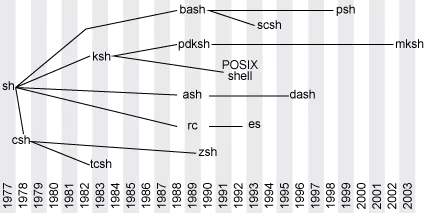
Shells—or command-line interpreters— have a long history, but this discussion begins with the first UNIX® shell. Ken Thompson (of Bell Labs) developed the first shell for UNIX called the V6 shell in 1971. Similar to its predecessor in Multics, this shell (/bin/sh) was an independent user program that executed outside of the kernel. Evolution of shells in Linux
📖 @ibm
Se pueden instalar muchos interpretes de shell diferentes, en un mismo sistema. Sin embargo sólo uno de ellos será el que se ejecute por defecto al hacer login. Para cambiar el shell por defecto de nuestro sistem podemos usar el siguiente comando:
chsh -s /full/path/to/shell
puedes encontrar más información al respecto en el arch wiki
Nuestro intérprete de shell puede ejecutarse dentro de una consola virtual sin que sea necesario tener instalado un ambiente gráfico, para acceder a las consolas que se inician por defecto en arch linux podemos utilizar la combinación de teclas ctrl + alt + F2...F6
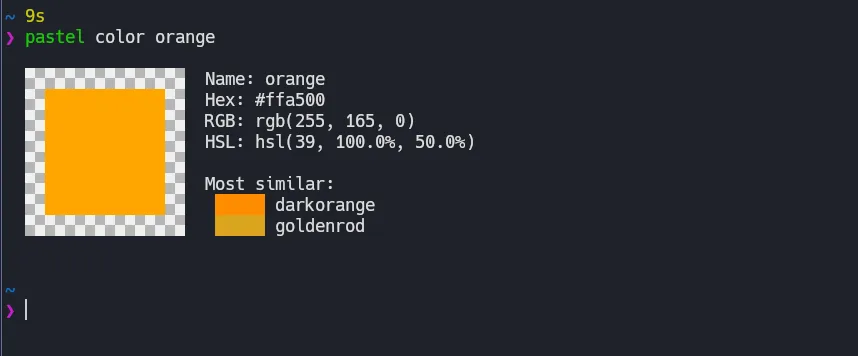
También podemos acceder a nuestro intérprete de shell a través de un programa de terminal dentro de nuestro ambiente gráfico. Hay muchas opciones diferentes y normalmente cada escritorio trae alguna instalada por defecto, en el arch wiki puedes encontrar una lista bastante larga, dentro de las más comunes están kitty o alacritty. Usar la terminal dentro del ambiente gráfico tiene algunas ventajas, como son más colores disponibles, emojis, o soporte para imágenes más accesible, entre otras.
The Portable Operating System Interface (POSIX) is a family of standards specified by the IEEE Computer Society for maintaining compatibility between operating systems. POSIX defines both the system and user-level application programming interfaces (APIs), along with command line shells and utility interfaces, for software compatibility (portability) with variants of Unix and other operating systems.
Bash
Bash (Bourne-again Shell) is a command-line shell/programming language by the GNU Project. Its name alludes to its predecessor, the long-deprecated Bourne shell. Bash can be run on most UNIX-like operating systems, including GNU/Linux. Bash is the default command-line shell on Arch Linux.
Zsh
Zsh is a powerful shell that operates as both an interactive shell and as a scripting language interpreter. While being compatible with the POSIX sh (not by default, only if issuing emulate sh), it offers advantages such as improved tab completion and globbing.
Comandos comunes
La cantidad de comandos disponibles en el shell es muuuuy grande, y crece cada vez que instalamos más herramientas o escribimos nuestros propios scripts, a continuación hay una lista de los comandos más comunes con los cuales podemos empezar. Recuerda que puedes empezar a teclear el comando y al picar la tecla <tab> el shell te ayudará a completar (autocomplete) o te ofrecerá las opciones disponibles que empiezan con el texto que llevas escrito.
ls | The most frequently used command in Linux to list directories |
pwd | Print working directory command in Linux |
cd | Linux command to navigate through directories |
mkdir | Command used to create directories in Linux |
mv | Move or rename files in Linux |
cp | Similar usage as mv but for copying files in Linux |
rm | Delete files or directories |
touch | Create blank/empty files |
ln | Create symbolic links (shortcuts) to other files |
cat | Display file contents on the terminal |
clear | Clear the terminal display |
echo | Print any text that follows the command |
less | Linux command to display paged outputs in the terminal |
man | Access manual pages for all Linux commands |
uname | Linux command to get basic information about the OS |
whoami | Get the active username |
tar | Command to extract and compress files in Linux |
grep | Search for a string within an output |
head | Return the specified number of lines from the top |
tail | Return the specified number of lines from the bottom |
diff | Find the difference between two files |
cmp | Allows you to check if two files are identical |
comm | Combines the functionality of diff and cmp |
sort | Linux command to sort the content of a file while outputting |
export | Export environment variables in Linux |
zip | Zip files in Linux |
unzip | Unzip files in Linux |
ssh | Secure Shell command in Linux |
systemctl | Systemd command to start and stop services |
ps | Display active processes |
kill | Kill active processes by process ID or (killall) name |
df | Display disk filesystem information |
mount | Mount file systems in Linux |
chmod | Command to change file permissions |
chown | Command for granting ownership of files or folders |
ip | Display network interfaces and IP addresses. Antes su usaba ifconfig |
traceroute | Trace all the network hops to reach the destination |
wget | Direct download files from the internet |
ufw | Firewall managing command |
iptables | Base firewall for all other firewall utilities to interface with |
pacman | Package manager, for other distros: apt, yum, rpm, and others |
sudo | Command to escalate privileges in Linux |
cal | View a command-line calendar |
alias | Create custom shortcuts for your regularly used commands |
dd | Majorly used for creating bootable USB sticks |
whereis | Locate the binary, source, and manual pages for a command, también puedes usar which |
whatis | Find what a command is used for |
top | View active processes live with their system usage, fancier? try htop. |
useradd | Add new user or change existing users data, usermod is also important |
passwd | Create or update passwords for existing users |
Haz 🖱️ click sobre los comandos para ver su manual.
Juegos y bromas
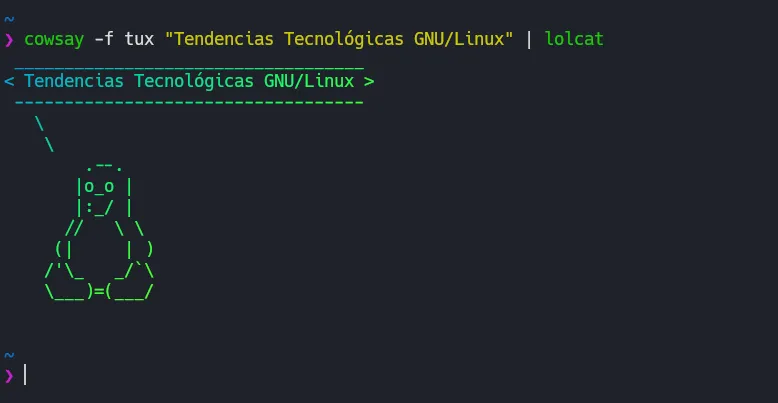
- ttysolitaire
- cowsay
- sl
- figlet
- telnet mapscii.me
- lolcat
- cool-retro-term (para los nostálgicos)
Terminal multiplexers
GNU Screen
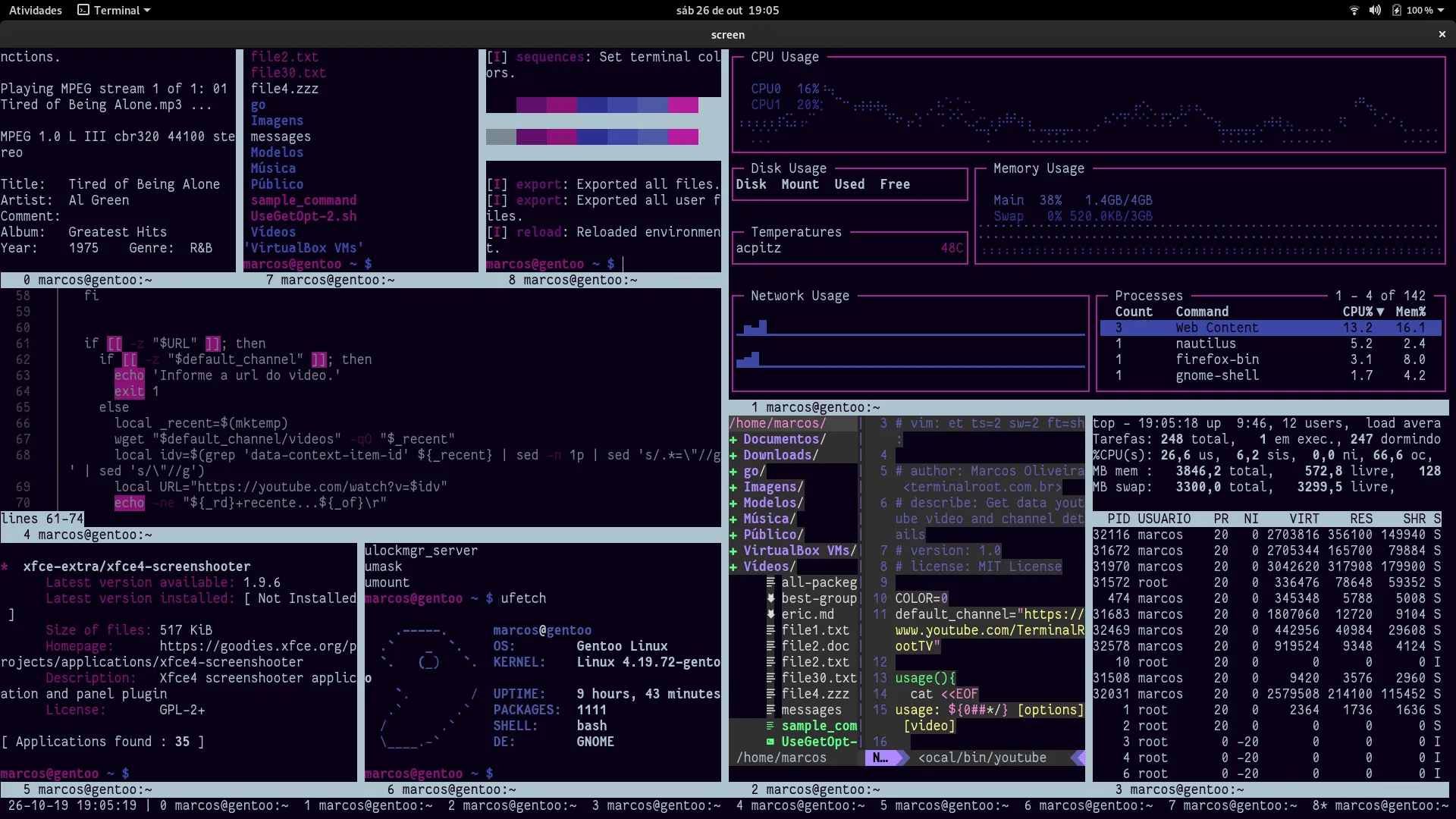
GNU Screen is a terminal multiplexer, a software application that can be used to multiplex several virtual consoles, allowing a user to access multiple separate login sessions inside a single terminal window, or detach and reattach sessions from a terminal. It is useful for dealing with multiple programs from a command line interface, and for separating programs from the session of the Unix shell that started the program, particularly so a remote process continues running even when the user is disconnected.
tmux
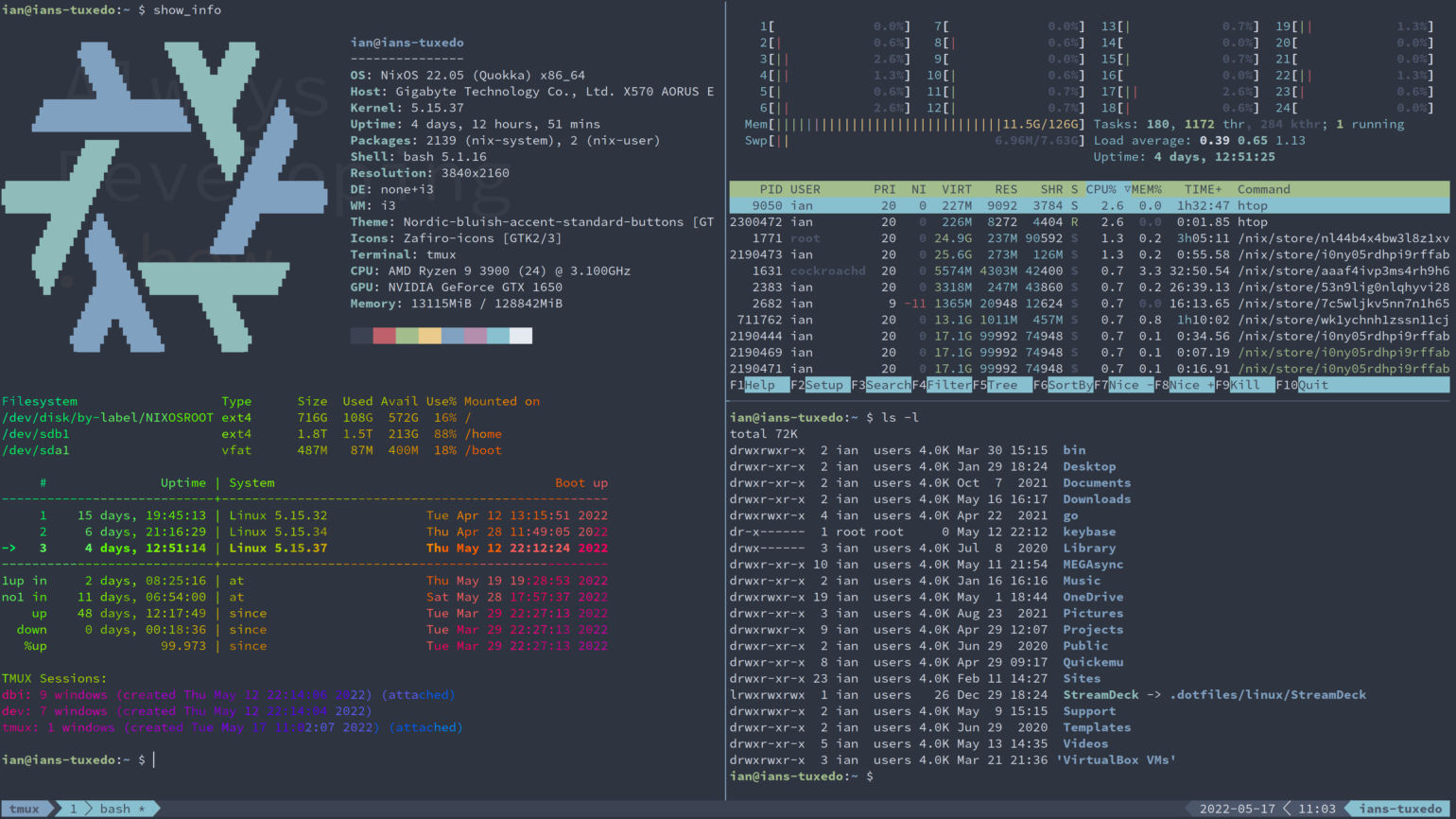
tmux is an open-source terminal multiplexer for Unix-like operating systems. It allows multiple terminal sessions to be accessed simultaneously in a single window. It is useful for running more than one command-line program at the same time. It can also be used to detach processes from their controlling terminals, allowing remote sessions to remain active without being visible.
Secure Shell
The Secure Shell Protocol (SSH) is a cryptographic network protocol for operating network services securely over an unsecured network. Its most notable applications are remote login and command-line execution.
SSH was designed on Unix-like operating systems, as a replacement for Telnet and for unsecured remote Unix shell protocols, such as the Berkeley Remote Shell (rsh) and the related rlogin and rexec protocols, which all use insecure, plaintext methods of authentication, like passwords.
How Secure Shell Works (SSH) - Computerphile
En la mayoría de las distribuciones Linux el servidor SSH instalado por defecto es OpenSSH, sin embargo existen otras implementaciones del protocolo, como Dropbear SSH que está pensado para ser más ligero y correr en máquinas con menos recursos.
Para poder conectarse a un ordenador, este debe correr el servidor de ssh, comunmente llamado sshd y en nuestro ordenador debemos tener instalado el cliente.
ssh -p port user@server-address
Cliente
Normalmente la autenticación del usuario en SSH se realiza mediante la solicitud de un password, sin embargo esta forma no es la más segura y ciertamente no es la más cómoda. Para poder autenticarnos mediante una llave y poder prescindir del uso de un password es necesario generar un par de llaves, una pública y una privada.
En ssh esto se hace con el comando:
ssh-keygen
si queremos generar una llave privada sin protección y de esta forma evitar tener que usar una passphrase para desbloquear nuestra llave privada, simplemente dejamos en blanco el campo y damos enter dos veces.
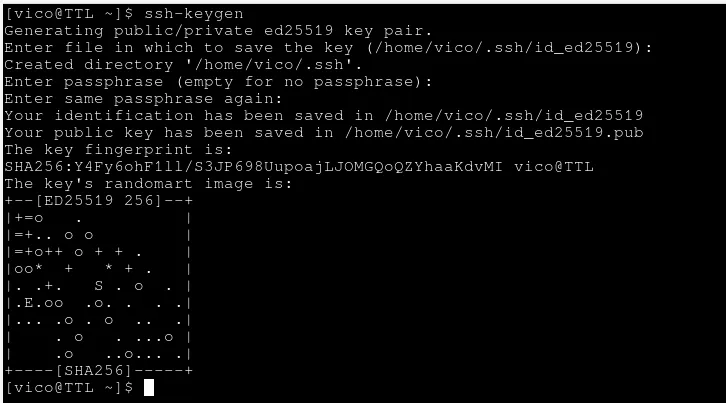
Esto generará un par de llaves y las guardará por defecto en la carpeta ~/.ssh, de ahora en adelante tenemos que cuidar nuestra llave privada, cualquiera con acceso a ella podría utilizarla para entrar en cualquier máquina donde estemos autorizados.
Para poder utilizar nuestro nuevo par de llaves en un ordenador remoto, tenemos que copiar el contenido de nuestra llave pública a dicho ordenador, dentro del archivo ~/.ssh/authorized_keys, esto lo podemos hacer manualmente o con un comando que viene integrado en openssh:
ssh-copy-id [user@]hostname
La primera vez, para poder copiar nuestra llave pública, nos pedirá el password y a partir de ese momento podremos entrar sin él.
El cliente SSH se puede configurar con opciones y hosts por defecto. Las diferentes opciones pueden ser declaradas globalmente o por servidor, por ejemplo:
~/.ssh/config
# global options
User myname

# host-specific options
Host myserver
    Hostname server-address
    Port     port
Con esta configuración estos dos comandos son equivalentes:
$ ssh -p port myname@server-address
$ ssh myserver
Puedes ver todas las opciones en el manual de ssh_config.
Servidor
El servicio que levanta el servidor SSH se llama sshd, si nuestro sistema utiliza systemd (la mayoría de las distribuciones grandes lo hacen) lo podemos iniciar con el comando:
sudo systemctl start sshd
y habilitarlo para que se inicie automáticamente con:
sudo systemctl enable sshd
La configuración del servicio se realiza a través del archivo /etc/ssh/sshd_config. Una de las formas más sencillas de mejorar radicalmente la seguridad de nuestro servidor ssh es sólo permitir logins con llave e impedir el uso de passwords. Esto lo podemos hacer con las siguientes opciones:
PasswordAuthentication no
AuthenticationMethods publickey
Juego: The Bandit wargame
Advanced Bash-Scripting Guide
Awesome CLI apps
Awesome TUIs
man.page
Command Line en Linux Journey
Unix power tools Book
Evolution of shells in Linux