Linux Shell II
Manejo de archivos y directorios
Jerarquía
The Filesystem Hierarchy Standard (FHS) is a reference describing the conventions used for the layout of Unix-like systems. It has been made popular by its use in Linux distributions, but it is used by other Unix-like systems as well
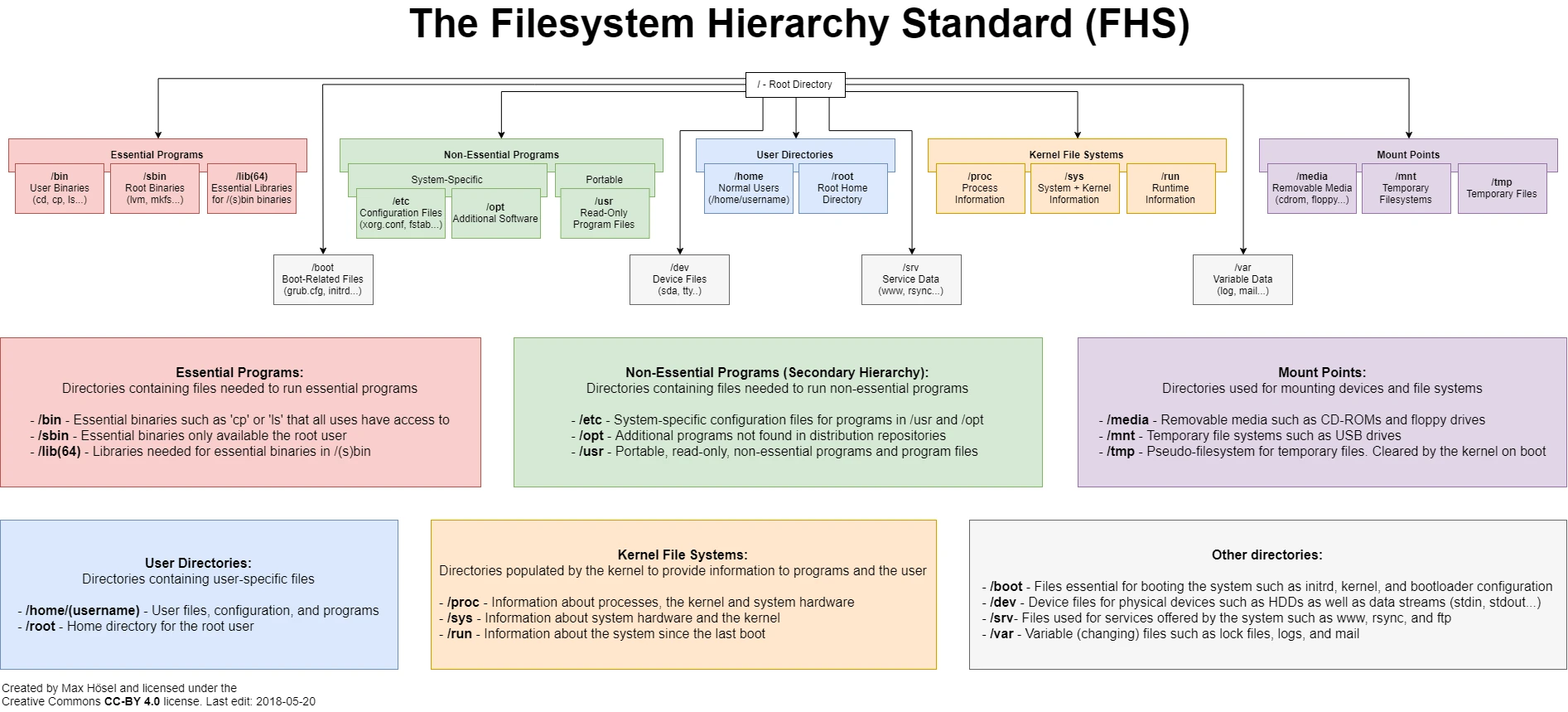
The fstab file can be used to define how disk partitions, various other block devices, or remote file systems should be mounted into the file system.
$ sudo nvim /etc/fstab
Permisos
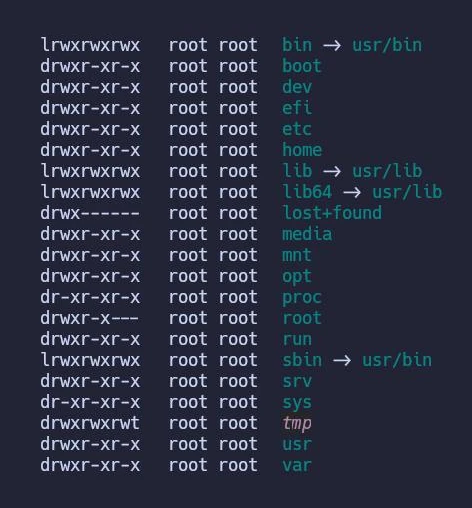
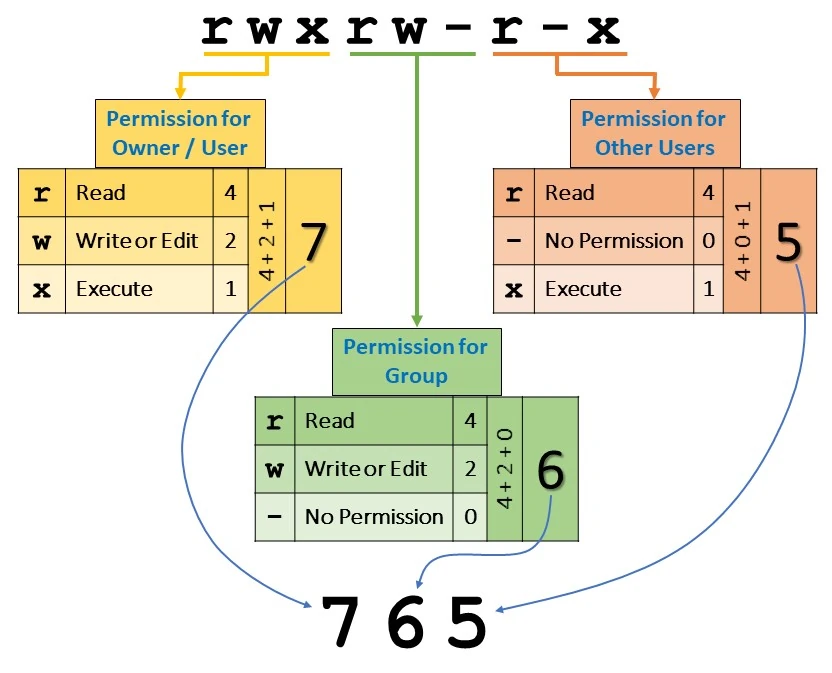
Unix-like systems implement three specific permissions that apply to each class:
The read permission grants the ability to read a file. When set for a directory, this permission grants the ability to read the names of files in the directory, but not to find out any further information about them such as contents, file type, size, ownership, permissions.
The write permission grants the ability to modify a file. When set for a directory, this permission grants the ability to modify entries in the directory, which includes creating files, deleting files, and renaming files. This requires that execute is also set; without it, the write permission is meaningless for directories.
The execute permission grants the ability to execute a file. This permission must be set for executable programs, in order to allow the operating system to run them. When set for a directory, the execute permission is interpreted as the search permission: it grants the ability to access file contents and meta-information if its name is known, but not list files inside the directory, unless read is set also.
SSHFS is a FUSE-based file system client for mounting remote directories over a Secure Shell connection.
$ sshfs [user@]host:[dir] mountpoint [options]
Enviroment variables
An environment variable is a named object that contains data used by one or more applications. In simple terms, it is a variable with a name and a value. The value of an environmental variable can for example be the location of all executable files in the file system, the default editor that should be used, or the system locale settings. Users new to Linux may often find this way of managing settings a bit unmanageable. However, environment variables provide a simple way to share configuration settings between multiple applications and processes in Linux.
Crear una variable e imprimirla:
$ VAR='Hola mundo!'
$ echo VAR
VAR
$ echo $VAR
Hola mundo!
Para ver el contenido de una variable debemos anteceder su nombre con el signo $. Podemos utilizar el comando echo para imprimir el su valor.
El comando printenv nos muestra las variables definidas en nuestra sesión, para crear una variable en nuestro entorno actual utilizamos el comando export y si queremos que esa variable este siempre presente en nuestro shell la debemos declarar en nuestro archivo de configuración, por ejemplo .bash:profile o zshenv
El comando env nos permite ejecutar un programa en un enviroment modificado temporalmente, por ejemplo:
env VAR=prueba kitty
de esta forma ejecutaremos la terminal kitty con un enviroment que contenga la variable VAR definida como "prueba":
$ echo $VAR
prueba
PATH
PATH contains a colon-separated list of directories in which your system looks for executable files. When a regular command (e.g. ls, systemctl or pacman) is interpreted by the shell (e.g. bash or zsh), the shell looks for an executable file with the same name as your command in the listed directories, and executes it. To run executables that are not listed in PATH, a relative or absolute path to the executable must be given, e.g. ./a.out or /bin/ls.
echo $PATH
/home/user/bin:/usr/bin:/usr/local/bin
El comando which nos permite encontrar un ejecutable en nuestro sistema.
Which takes one or more arguments. For each of its arguments it prints to stdout the full path of the executables that would have been executed when this argument had been entered at the shell prompt. It does this by searching for an executable or script in the directories listed in the environment variable PATH using the same algorithm as bash(1).
stdin, stdout y stderror
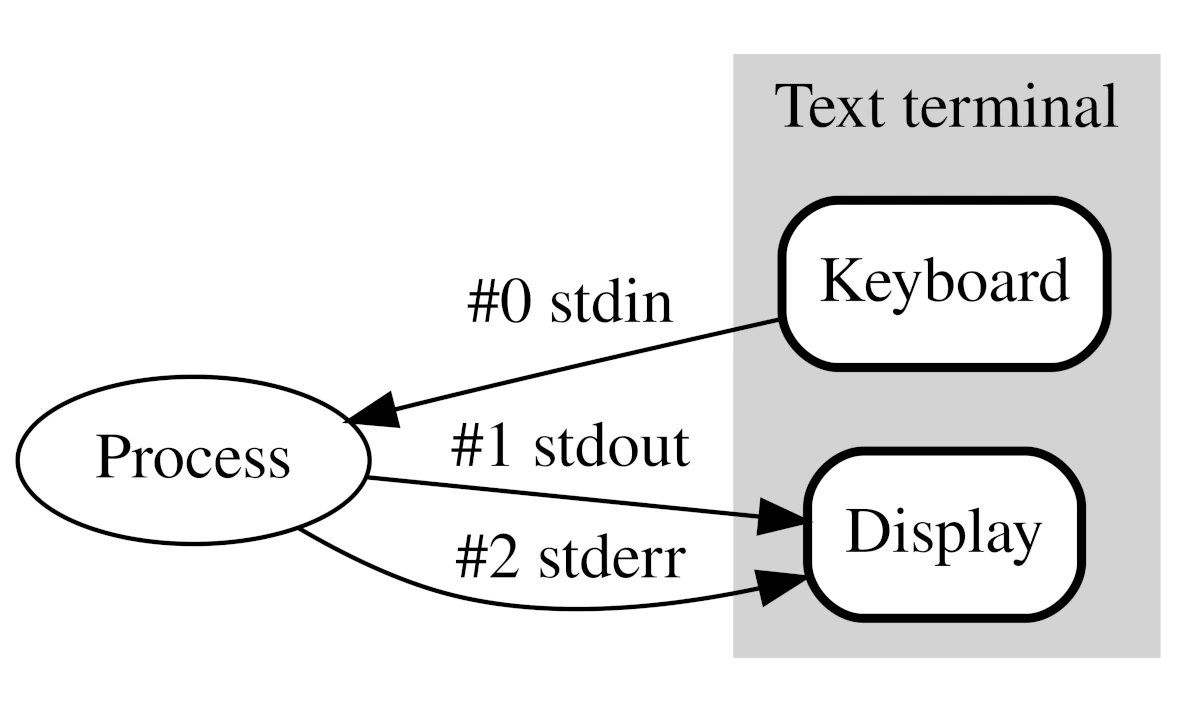
All applications have three unique file descriptors that connect them to the outside world. These are referred to as Standard Input, or stdin; Standard Output, or stdout; and Standard Error, or stderr.
Standard input is the default mechanism for getting input into an interactive program. This is typically a direct link to the keyboard when running directly in a terminal and isn’t connected to anything otherwise.
Standard output is the default mechanism for writing output from a program. This is typically a link to the output terminal but is often buffered for performance reasons. This can be especially important when the program is running over a slow network link.
The standard error is an alternative mechanism for writing output from a program. This is typically a different link to the same output terminal but is unbuffered so that we can write errors immediately while the normal output can be written one line at a time.
Pipes and redirection
Redirecting Into Files
One common need when we run applications is to direct the output into a file instead of the terminal. Specifically, what we’re doing here is replacing the standard output file descriptor with one that goes where we want: In this case, a file.
This is typically done with the > operator between the application to run and the file to write the output into. For example, we can send the output of the ls command into a file called files as follows:
$ ls > files
Appending To Files
When we use >, then we are writing the output to the file, replacing all of the contents. If needed, we can also append to the file using >> instead:
$ ls -1 *.txt > files
$ ls -1 *.text >> files
$ ls -1 *.log >> files
Redirecting Standard Error
All three of the standard file descriptors have ID values, as defined in the POSIX specification and used in the C language. Standard input is 0, standard output is 1, and the standard error is 2.
When we use the redirect operators, by default, this applies to standard output. We can explicitly specify the file descriptor to redirect, though, by prefixing it with the file descriptor ID.
For example, to redirect standard error from the cat command, we would use 2>:
$ cat absent-file 2> log
We can also use &> to redirect both standard output and standard error at the same time:
$ ls -1 &> log
Redirecting into File Descriptors
Sometimes we want to redirect into a file descriptor instead of a file. We can achieve this by using the file descriptor ID, prefixed by &, in place of the filename. For example, we can redirect into standard error by using >&2:
$ echo Standard Output >&1
$ echo Standard Error >&2
A common construct is to combine standard error into standard output so that both can be used together
# ls -1 2>&1
Reading From Files
Sometimes we also want to achieve the opposite – redirecting a file into an application. We do this using the < operator, and the contents of the file will replace the standard input for the application:
$ wc -l < /etc/hosts
85857
Piping Between Applications
The final action that we can perform is to direct the output of one application into another one. This is commonly referred to as piping and uses the | operator instead:
$ cat /etc/hosts | wc -l
85857
📖 from baeldung.com
alias
In computing, alias is a command in various command-line interpreters (shells), which enables a replacement of a word by another string.[1] It is mainly used for abbreviating a system command, or for adding default arguments to a regularly used command.
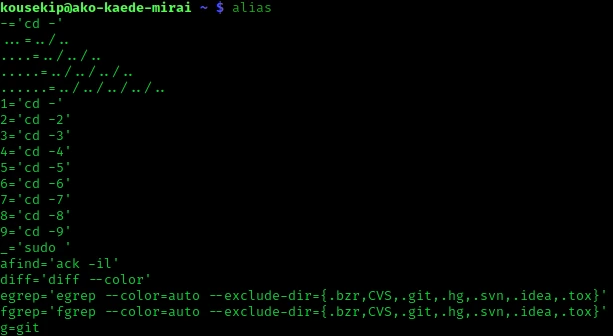
Los alias pueden ser creados simplemente asignando un valor o nombre a otra orden. Un ejemplo en el intérprete Bash sería:
alias copy="cp"
Para ver qué alias están definidos los siguientes comandos pueden ser utilizados:
alias # Usado sin argumentos; muestra una lista de los alias actuales
Si queremos que nuestros alias estén siempre disponibles al abrir nuestro shell, hay que declararlos en nuestro archivo de configuración, por ejemplo bashrc.
Configuración (dotfiles)
In Unix-like operating systems, any file or folder that starts with a dot character (for example, /home/user/.config), commonly called a dot file or dotfile, is to be treated as hidden – that is, the ls command does not display them unless the -a or -A flags (ls -a or ls -A) are used.
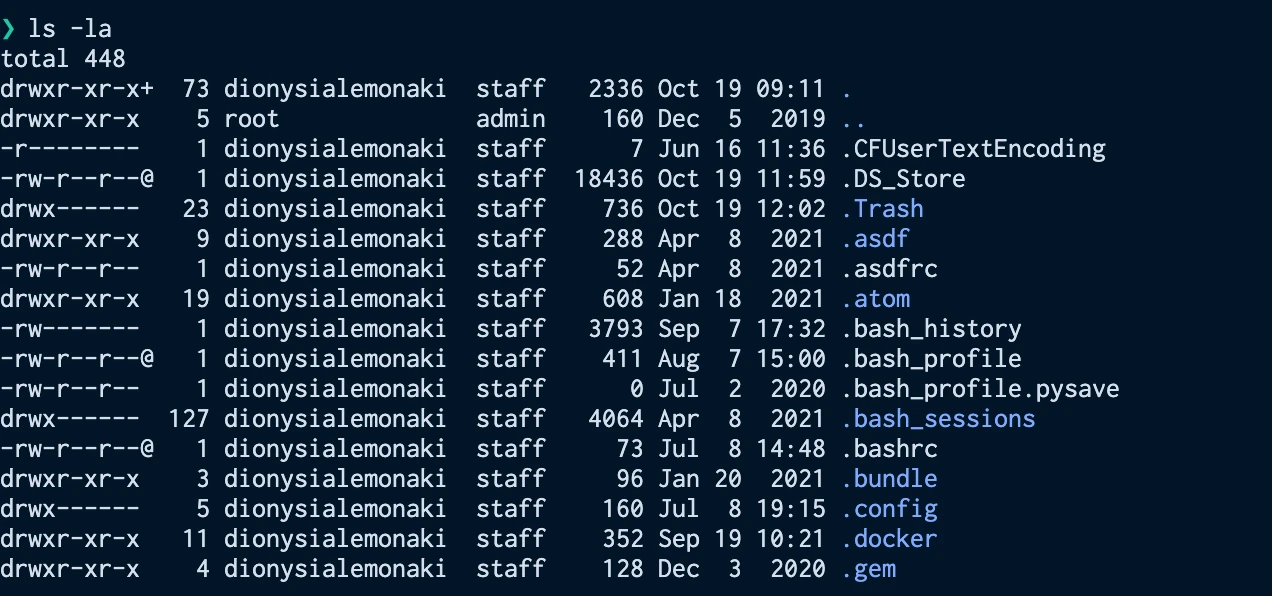
Para poder ver los archivos ocultos podemos usar la opcion ls -a o su versión larga ls --all.
A convention arose of using dotfiles in the user's home directory to store per-user configuration or informational text. Early uses of this were the well-known dotfiles .profile, .login, and .cshrc, which are configuration files for the Bourne shell and C shell and shells compatible with them
Many applications, from bash to desktop environments such as GNOME, now store their per-user configuration this way, but the Unix/Linux freedesktop.org XDG Base Directory Specification aims to migrate user config files from individual dotfiles in $HOME to non-hidden files in the hidden directory $HOME/.config.
User-specific application configuration is traditionally stored in so called dotfiles (files whose filename starts with a dot). It is common practice to track dotfiles with a version control system such as Git to keep track of changes and synchronize dotfiles across various hosts.
Utilizar un repositorio git para guardar nuestros archivos de configuración es una opción muy común y nos facilita la configuración de diferentes ordenadores. Una herramienta muy útil para este propósito es GNU stow
GNU Stow is a symlink farm manager which takes distinct packages of software and/or data located in separate directories on the filesystem, and makes them appear to be installed in the same place.
fzf
In computer science, approximate string matching (often colloquially referred to as fuzzy string searching) is the technique of finding strings that match a pattern approximately (rather than exactly). The problem of approximate string matching is typically divided into two sub-problems: finding approximate substring matches inside a given string and finding dictionary strings that match the pattern approximately.

fzf is a general-purpose command-line fuzzy finder. It's an interactive Unix filter for command-line that can be used with any list; files, command history, processes, hostnames, bookmarks, git commits, etc.
Ejemplos:
ls | fzf
ps ax | grep fzf
cd "$(ls | fzf)"
kill -9 "$(ps ax | fzf)"
Ejemplo
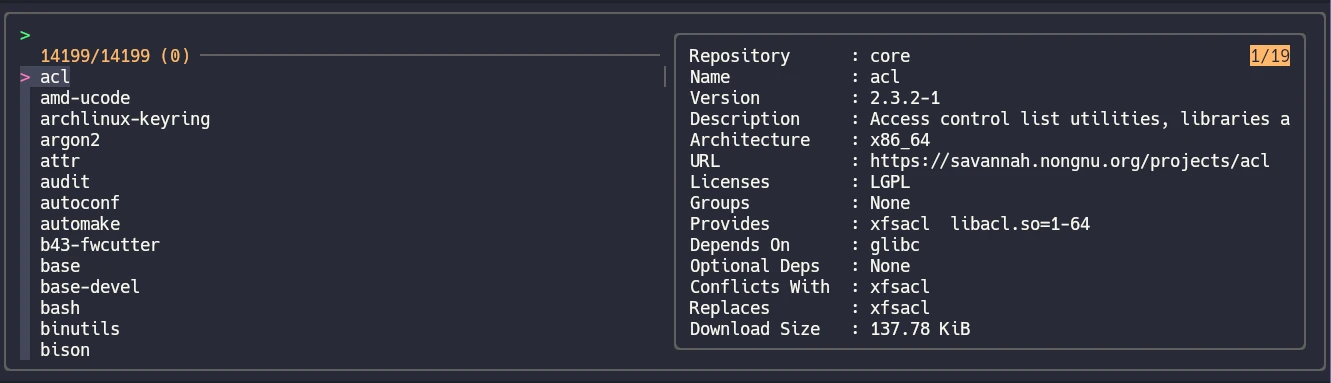
alias pacs='pacman -Slq | fzf --multi --preview '\''pacman -Si {1}'\'' | xargs -ro sudo pacman -S'
En este ejemplo creamos un alias que incluye varias redirecciones y utiliza fzf para seleccionar un paquete a instalar:
pacman -Slq: lista todos los paquetes disponibles.fzf --multi --preview: Nos permite seleccionar uno o varios paquetes con fzf.- La opción
--multi: Enable multi-select with tab/shift-tab. It optionally takes an integer argument which denotes the maximum number of items that can be selected. - La opción
--preview: Execute the given command for the current line and display the result on the preview window. in the command is the placeholder that is replaced to the single-quoted string of the current line. pacman -Si {1}: genera la información para el preview del paquete donde tenemos el cursor.
- La opción
xargs -ro: Ejecuta el comando indicado con los parámteros que recibe desde stdinput.- La opción
-r: (--no-run-if-empty) If the standard input does not contain any nonblanks, do not run the command. Normally, the command is run once even if there is no input. This option is a GNU extension. - La opción
-o: (--open-tty) Reopen stdin as /dev/tty in the child process before executing the command. This is useful if you want xargs to run an interactive application. sudo pacman -S: Instala el paquete seleccionado ustilizando sudo.
- La opción
Regular Expressions
A regular expression (shortened as regex or regexp), sometimes referred to as rational expression, is a sequence of characters that specifies a match pattern in text. Usually such patterns are used by string-searching algorithms for "find" or "find and replace" operations on strings, or for input validation. Regular expression techniques are developed in theoretical computer science and formal language theory.
Learn Regular Expressions on regexone.com
Test regex on ihateregex.io
or Learn Regex step by step on regexlearn.com
- Linux Journey
- Advanced Bash-Scripting Guide
- An Introduction to Useful Bash Aliases and Functions
- Pipes and redirection on baeldung.com